Slack notification sound not working on Mac: the whole checklist
Silent Slack notifications on a Mac come down to seven causes, and six of them are a switch someone flipped: macOS notification settings for Slack, Slack's own sound preference, an active Focus or paused notifications, Slack's notification schedule, the selected sound output device, per-channel overrides, and a corrupted Slack sound cache. Working through all seven in the order below takes about five minutes.
Do them in that order. Each check sits upstream of the next, so fixing Slack's own sound picker while macOS is refusing to play audio for Slack at all tells you nothing. Before you start, send yourself a direct message. If a DM makes a sound and a channel doesn't, skip to step 6.
The 5-minute checklist, in order
Each step below is what to check, the exact path to it, and why that setting silences Slack. Labels are from macOS 26 and the Slack desktop app as of August 2026; both vendors rename these menus, so if a label reads differently on your Mac the path is still the right one.
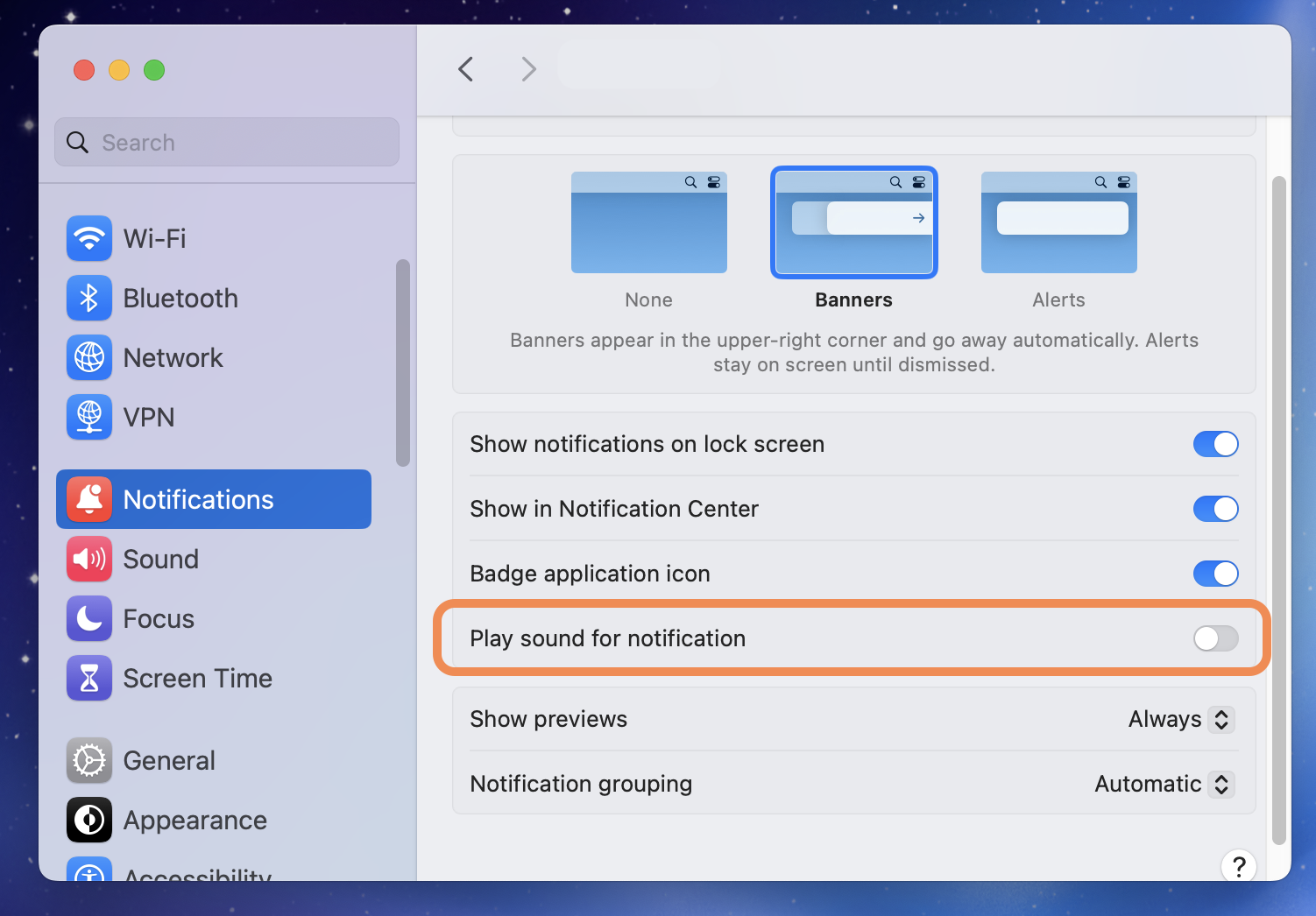
- macOS notification settings for Slack. Open System Settings → Notifications, choose Slack, and turn on Play sound for notifications. Set the alert style to Banners or Alerts, not None.
This switch sits above everything else. With it off, or with the alert style set to None, macOS never plays audio for a Slack banner no matter what Slack itself is set to. It's easy to walk past, because Slack keeps showing badges and unread counts the whole time.
- Slack's own notification sound. In Slack, open Settings → Notifications → Sound & appearance and check that Notification sound is set to something other than None. Directly below it, make sure Mute all sounds from Slack is unchecked.
Mute all sounds from Slack is a single checkbox that silences every sound the app makes while banners keep arriving normally. Visible notifications with no audio is what most of these searches turn out to be.
- Focus, Do Not Disturb, and Slack's own pause. Check the menu bar for a Focus icon and open Control Center → Focus to turn it off. Then click your avatar in Slack and confirm Pause notifications says Off.
There are two independent mutes here. A macOS Focus stops the banner from being delivered at all, so there is nothing left to make a sound. Slack's pause is separate and survives a restart, which is why the sound often comes back on its own an hour later and nobody knows why.
- Slack's notification schedule. Open Settings → Notifications → Notification schedule and read the hours it allows, then check the timezone on your Slack profile.
The schedule is stored against your profile timezone, not your Mac's. Fly from Berlin to San Francisco without updating the profile and a 9-to-6 schedule now covers your entire evening and mutes your entire working morning. In my testing this is the cause that resists diagnosis longest, because everything looks correctly configured.
- Sound output device. Open System Settings → Sound and look at the selected Output device, or hold the volume control in the menu bar to see it faster.
Notification audio follows the system output like everything else. AirPods sitting in an open case in the next room stay connected and dutifully play every alert to nobody. Check the output volume and the Alert volume slider on the same panel while you're there.
- Per-channel overrides. Open the channel you've been testing with, click its name, open Notifications, and check what Notify me about is set to. Look for a muted-channel indicator in the sidebar too.
Slack's default for channels is mentions only. A plain message in #general triggers no notification and therefore no sound, which is working as designed and reads as a bug. Test with a direct message instead. If the DM sounds and the channel doesn't, this was it.
- Clear Slack's cache and relaunch. In Slack, open Help → Troubleshooting → Clear Cache and Restart. If that doesn't take, quit Slack from the Dock, reopen it, and try the sound again.
The Slack desktop app is an Electron app and its sound files are cached assets like any other. A partial update can leave them unplayable while the rest of the app works fine. To tell, press the preview button beside Notification sound in Slack's settings. If the preview is silent too, the fault is inside Slack and the cache clear is the fix. If the preview plays and incoming messages don't, the cause is somewhere in steps 1 to 6.
If a step fixed it, you're done. If you got to the end and Slack is still silent, the last section is for you.
Limit: none of these seven gives Slack more than one sound. When the checklist works, every channel, every DM, and every keyword still share a single tone.
Slack plays a sound when I send a message — how to turn it on or off
The sent-message sound is a separate setting from your notification sound, in the same place: Settings → Notifications → Sound & appearance. Look for the checkbox about playing a sound when you send a message and set it whichever way you want: unchecked to stop the outgoing swoosh, checked to get it back after an update dropped it. As of August 2026 it's a plain checkbox with no volume control of its own.
Two things that catch people out. Turning it off doesn't touch incoming alerts, so you can keep hearing messages arrive and stop hearing yourself type. And it isn't a macOS notification, so muting Slack in System Settings → Notifications won't remove it. Slack plays that audio directly, and only Slack's own checkbox governs it.
Still silent, or tired of one sound for everything?
Slack's sound system has two problems, and the checklist only addresses one of them: it breaks, and when it works it gives you a single tone for every channel, person, and keyword in your workspace. The reliability fix is to stop routing your alerts through Slack's audio code at all.
Chirpy is a native Mac menu bar app that plays a chosen sound when a matching notification banner appears. It observes the text already visible in Notification Center banners through the macOS Accessibility API, matches each banner against rules stored on your Mac, and plays the sound attached to the most specific match. The banner is delivered by macOS, not by Slack's player, so the cache bugs and the muted-sounds checkbox in step 2 stop being able to cause silence. They aren't in the path any more.
- Set Slack's own notification sound to None. Settings → Notifications → Sound & appearance → Notification sound → None. Slack's audio path is out of the picture, and so is every way it can fail.
- Install Chirpy and grant Accessibility access. Chirpy asks for Accessibility access so it can read the text of Notification Center banners. It never asks for Screen Recording, and it never connects to Slack.
- Write one rule per thing you care about. Start with a rule for #incidents and a rule for your manager's name, both louder than everything else, and one quiet default sound for the rest of Slack. Add keyword rules only where the distinction earns a sound.
If you'd rather leave Slack's own sound picker alone, mute Slack at the macOS level instead, in System Settings → Notifications → Slack. Either route works. What matters is that only one of the two is making noise, or you'll hear both sounds a beat apart.
In practice, #incidents gets a sound you can't ignore at full volume, your manager's name gets a second one, and everything else in Slack gets something quiet you can hear from the kitchen without interrupting anything. Volume is set per rule, so the loud one doesn't drag the rest up with it. There are more than 72 sounds in the sound library, and you can load your own MP3, WAV, or CAF file.
Chirpy costs $9.99 once, with no subscription and all future updates included. It's free to try for 3 days without a credit card, there's a 30-day money-back guarantee, and it needs macOS 13 or later. The licence is per person and activates on up to 3 Macs. See what the licence covers.
Chirpy has no Slack integration and requests no OAuth scopes, so nothing leaves your Mac and the same rules work for Teams, Mail, or anything else that posts a banner.
The setup that works is a quiet default with two or three sounds reserved for the alerts that have earned an interruption; adding a distinct sound to everything rebuilds the problem you started with. Chirpy runs on the Mac, reading the banners macOS delivers, so Slack in a browser tab on another machine is outside its reach.
Where to go next
For the per-channel side of this once the sound works, per-channel Slack notification sounds covers what Slack offers natively and what it doesn't. The Slack notification guide is the shorter reference for every sound setting in the app. And if Slack isn't the only app that sounds wrong, you can set a different notification sound for each app on the same rules.
Frequently asked questions
Usually one of two switches. In System Settings → Notifications → Slack, Play sound for notifications is off. Or in Slack, Settings → Notifications → Sound & appearance has Mute all sounds from Slack checked. Check both before anything else.
Per-channel notification settings. Slack's default is to notify you about mentions only, so a plain message in a channel makes no sound while a direct message does. Open the channel, click its name, open Notifications, and change Notify me about.
Open Settings → Notifications → Sound & appearance and uncheck the option for playing a sound when you send a message. It's separate from your notification sound, so turning it off leaves incoming alerts audible.
Not in Slack. It has one notification sound for every channel, person, and keyword. Chirpy plays a sound per rule off the macOS banner instead, so #incidents and a reaction in a quiet channel can sound completely different.