Custom notification sounds for Chrome and websites on your Mac
Chrome on macOS does not play its own notification sounds. It hands every web notification to Notification Center, and macOS plays one sound for the app called Chrome. There is no per-site sound picker anywhere in Chrome, so Gmail, a calendar invite, and a server alert all sound identical.
Which is a strange place to end up, given that most of the apps I get notifications from now live in a tab. Chrome's own settings decide whether a site may interrupt you. Nothing in them decides what the interruption sounds like.
The rest of this page covers what Chrome's notification settings do control, why one shared sound is worse for browsers than for any other app, and how a rule that matches the site origin gives each website its own sound.
What Chrome can do natively on macOS
Chrome keeps one list of which sites may send you notifications, and it has two states per site: allowed or blocked. As of Chrome 152 on macOS 26, there is no audio control on that page.
1. Allow or block notifications per site
- Open Chrome and go to chrome://settings/content/notifications, or use Chrome → Settings → Privacy and security → Site settings → Notifications.
- Under Allowed to send notifications, find the site.
- Click the site to open its permissions, or use the three-dot menu beside it and choose Block.
- Add an entry by hand with Add beside Not allowed to send notifications.
This is the right control for a news site that talked you into a subscription prompt two years ago. It removes the notification entirely, banner and sound together.
Limit: the permission is binary. A site either notifies you or it doesn't. There is no sound menu, no volume, and no way to tell two allowed sites apart by ear.
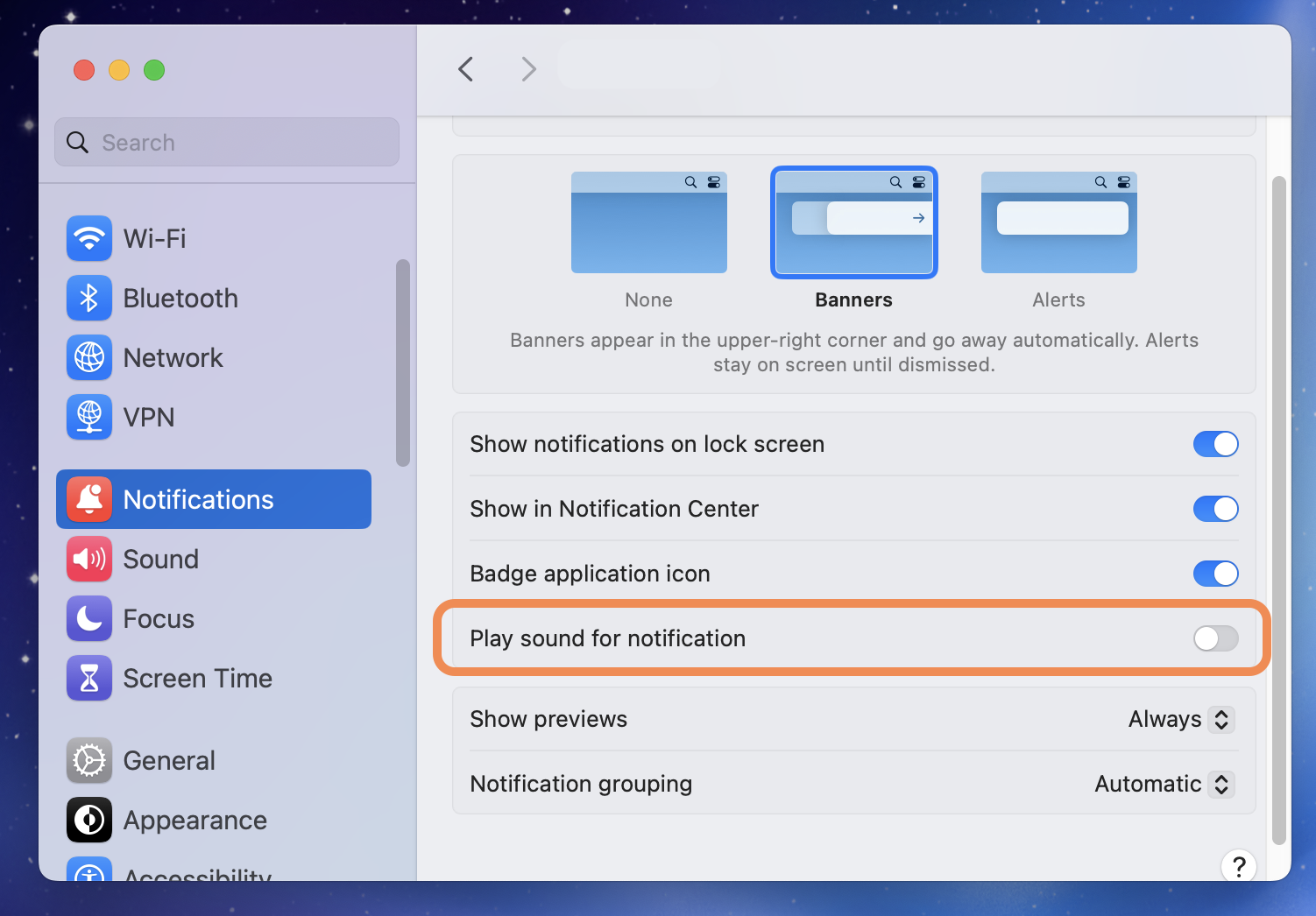
2. Turn Chrome's notification sound off in macOS
- Open Apple menu → System Settings.
- Click Notifications.
- Under Application Notifications, choose Google Chrome.
- Turn off Play sound for notifications.
Banners still arrive and still stack up in Notification Center; they stop making noise. That single entry is the whole of macOS's opinion about your browser.
Limit: macOS sees one app. Muting Chrome silences every website at once, and there is no way to keep the sound for one site while silencing another.
Why one browser sound matters more than it looks
Every web app you never installed is filed under Chrome. Gmail, Google Calendar, WhatsApp Web, the Grafana instance your team runs, an on-call dashboard, a TradingView alert, whatever internal tool your company built and never shipped a desktop client for. macOS lumps them into one row in System Settings and gives them one ding.
The consequence is that browser notifications carry less information than any other notification on the machine. A Slack sound at least tells you it was Slack. A Chrome sound tells you that something happened somewhere on the internet, so people end up checking the tab bar every time, or blocking everything and finding out about the alert forty minutes later.
Blocking is the common outcome, and it's a real loss for the two or three sites that were worth hearing. The split worth having is this site gets a sound I recognise, and the rest are quiet.
How to set a different sound for each website
Chirpy is a native Mac menu bar app that plays a chosen sound when a matching notification banner appears. It reads the text already visible in Notification Center banners through the macOS Accessibility API, matches each banner against rules stored on your Mac, and plays the sound attached to the most specific match. It never talks to a website, an API, or a Chirpy server.
Per-site sounds work because a web notification's banner carries the site's origin along with its title and body. Chrome has to tell you which site is talking to you. As of Chrome 152 on macOS 26, that origin is visible in the banner, so a keyword rule on mail.google.com matches Gmail notifications and nothing else. Chrome can't sort your sites by sound, but the banner text it writes can.
- Keep the site allowed in Chrome. The site has to be allowed to send notifications, or there's no banner to react to. Check chrome://settings/content/notifications and make sure the origin is on the Allowed list.
- Mute Chrome in System Settings. Open System Settings → Notifications, choose your browser, and turn off Play sound for notifications. Banners keep arriving. This stops the one shared ding so it doesn't play over the sound you're about to assign.
- Create a rule that matches the site origin. In Chirpy, add a rule for the browser and narrow it with the origin as a keyword — mail.google.com, web.whatsapp.com, your dashboard's hostname. Pick a sound from the library or load your own MP3, WAV, or CAF file.
- Add sender rules above the site rule. A keyword rule on a person's name or a phrase like production sits above the site rule. When both match, the more specific one plays, so one sender inside Gmail can sound different from the rest of Gmail.
Four rules that cover most of what a browser throws at you:
- mail.google.com → A soft bell. Gmail in a tab. Quiet enough to ignore during focused work, distinct enough that you know it was mail and not a chat.
- web.whatsapp.com → A short pop. WhatsApp Web behaves like a chat app and should sound like one, without sounding like Slack.
- grafana.internal → Something you can't ignore. An alert firing on a dashboard is the one web notification that has earned the right to interrupt you.
- Maya from Ops → The louder chime. A keyword rule on a person's name matches inside the Gmail banner, so one sender sounds different from the rest of the inbox.
The last one is the difference between per-site and per-sender. Two rules can both point at Gmail: a quiet bell on the origin, and a louder chime on a specific name. The specific rule wins when both match, so the inbox stays quiet and one person doesn't.
None of this is Chrome-specific. Edge, Brave, Arc, and Firefox all hand web notifications to Notification Center in the same way, and all appear in System Settings as a single app, so the same rules work if you switch browsers or run two at once. If you keep Gmail in one browser and everything else in another, that's two rules, not two setups.
Chirpy costs $9.99 once, with no subscription. The full app is free to try for 3 days with no credit card, there's a 30-day money-back window, and it needs macOS 13 or later. A licence activates on up to 3 Macs. See what the licence covers. Sounds come from the included library of more than 72, or your own MP3, WAV, and CAF files.
Chrome settings vs macOS settings vs Chirpy
| Capability | Chrome settings | Native macOS | Chirpy |
|---|---|---|---|
| Different sound per website | No | No | Yes, matched on the site origin |
| Different sound per sender within one site | No | No | Yes, keyword rule on the name |
| Silence one site and keep another audible | Block it entirely, banner too | No, the toggle covers the whole browser | Yes, silent for one origin and audible for the next |
| Custom sound files | No | One system alert sound | MP3, WAV, CAF |
Chrome's block list handles the sites that shouldn't have been allowed in the first place, and the steps for it are further up this page. It's blunt, though, since a blocked site can't reach you at all, banner included.
Chirpy covers the sites that are worth hearing, where you need to know which one it was. Two or three rules over a quiet default is the setup that lasts. Give all forty websites their own sound and you've rebuilt the noise you started with.
Related: the Chrome notification guide, the Gmail guide for the desktop and web differences, and how to give each app its own sound across the rest of your Mac.
Frequently asked questions
No. Chrome has no per-site sound setting. Its notification controls allow or block a site, and the audio comes from macOS, which treats every site as one app called Chrome. Per-site sounds need a rules tool that reads the banner, such as Chirpy.
If you use Gmail in a browser, there's no sound setting in Gmail or in Chrome. Mute Chrome in System Settings → Notifications, then create a rule that matches mail.google.com and pick the sound you want. The Mail app has its own single new-mail sound.
Because macOS sees one app. Chrome hands every site's notification to Notification Center under its own name, so Gmail, a calendar, and a dashboard alert all play whatever sound is set for Chrome. The site origin is in the banner text, not in the sound.
Yes. Every Mac browser hands web notifications to Notification Center the same way, and each appears in System Settings as one app. A Chirpy rule matches the banner text regardless of which browser posted it, so the same site rules work in Edge, Brave, Arc, and Firefox.