Set a different notification sound for each app on your Mac
No. macOS has no setting for giving each app its own notification sound. You get one system alert sound, plus a per-app switch that turns notification audio on or off. A few apps ship a sound picker of their own. I checked all 118 apps in the Chirpy guide directory and found 6 with meaningful sound controls.
So a message from your manager sounds exactly like a reaction in a channel nobody reads. The banner tells you what happened. The sound tells you nothing, so you stop what you're doing and look.
There are three native workarounds worth knowing, and none of them gives every app its own sound. For that you need either an app with its own sound picker or a rules tool that reacts to Notification Center banners. Below, what macOS can do, which apps can help themselves, and what's left over.
Why every Mac app sounds the same
macOS keeps system alerts and app notifications in two different places, and neither one is a sound map.
In System Settings → Sound, the Alert sound menu sets the sound your Mac plays when it needs your input or refuses an action. It's one choice for the whole system.
In System Settings → Notifications, you select an app and control whether it may notify you, where its banners appear, and whether they play audio. That last control is a switch. There's no menu anywhere in macOS where you can assign Glass to Mail, Hero to Calendar, and a custom file to Slack.
Some apps fill the gap themselves. Slack, Discord, Telegram, and Zoom all have sound settings, usually one sound for the entire app, sometimes a short list of event sounds. Most apps don't try: they hand the notification to macOS and let the system make the noise.
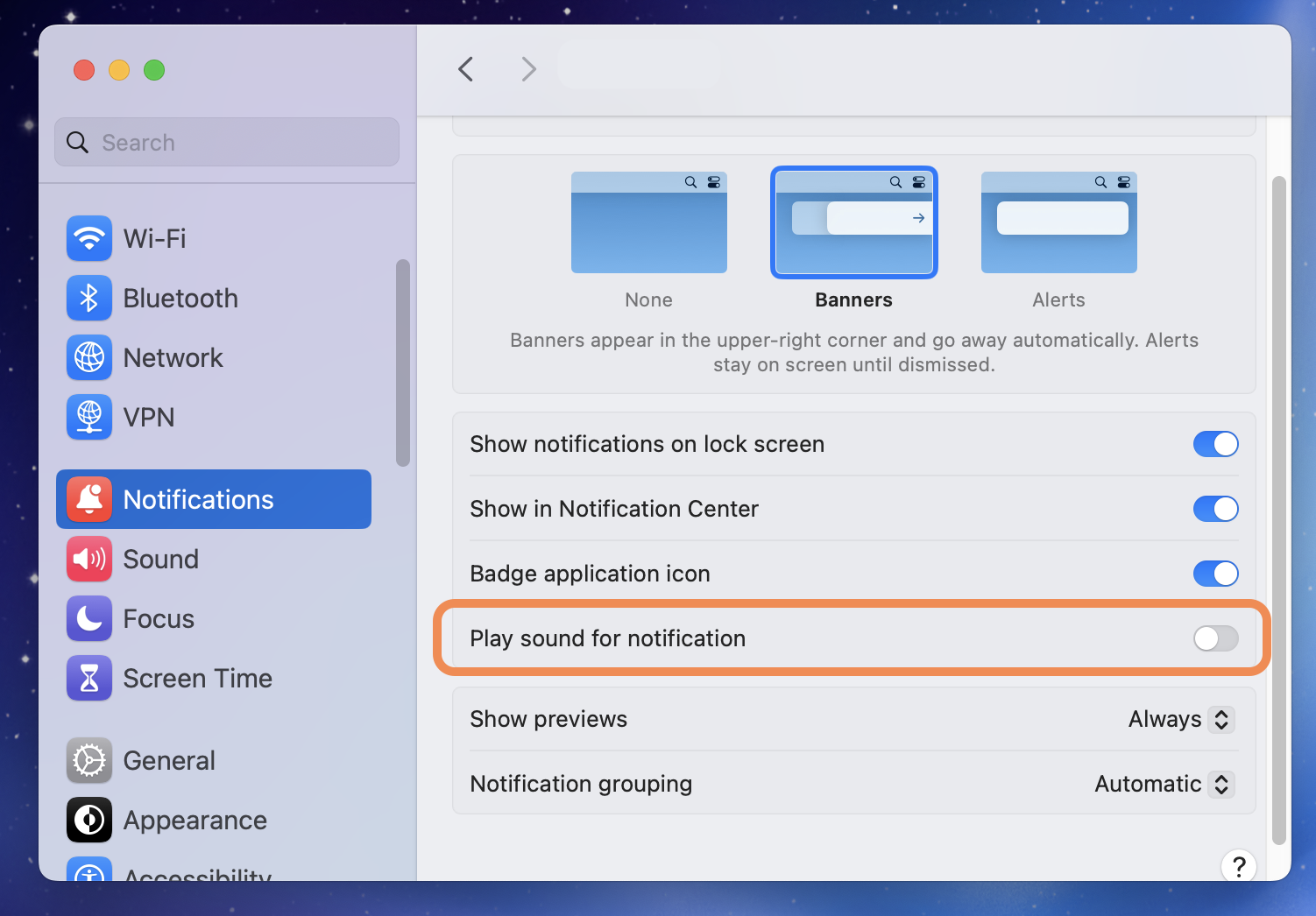
Native options for changing notification alerts
These three are worth doing before you install anything. They make a Mac quieter and they change which alert you hear. They do not make two apps sound different from each other.
1. Change the system alert sound
- Open Apple menu → System Settings.
- Click Sound in the sidebar.
- Open the menu beside Alert sound.
- Choose a sound, then set its level with the Alert volume slider.
The same panel decides where sound effects play and whether macOS plays interface sounds at all. All of it is system-wide.
Limit: one alert sound, shared by everything. You're changing the sound, not assigning it to an app, channel, person, or keyword.
2. Turn sound off for one app
- Open Apple menu → System Settings.
- Click Notifications.
- Under Application Notifications, choose the app.
- Turn off Play sound for notifications.
Banners, badges, and Notification Center entries stay exactly as they were. This is the right move for an app you want to see and not hear. It's also step two of the Chirpy setup further down, for the same reason.
Limit: the control is binary. It can silence an app; it can't give that app a different sound.
3. Use a Focus to allow or silence groups
- Open Apple menu → System Settings.
- Click Focus.
- Choose an existing Focus or click Add Focus.
- Open Allowed Apps and choose which apps may interrupt you.
- Add a schedule if you want it to switch on by itself.
A Work Focus that allows Calendar, Mail, and your on-call tool while silencing everything social is a good hour of setup. It decides who gets through.
Limit: Focus filters which notifications arrive. It doesn't change what any of them sound like.
Which Mac apps have their own notification sound settings? I checked all 118
I went through all 118 apps in the Chirpy notification guides and sorted what each one offers on macOS into three categories. The result is lopsided.
| Sound-control level | Apps | Share | What it means |
|---|---|---|---|
| In-app sound | 6 | 5% | The app exposes real sound controls, usually for the whole app or for a few event types. |
| Limited | 39 | 33% | A toggle, one shared tone, or a ringtone, but nothing that reaches per-channel or per-person sounds on Mac. |
| System only | 73 | 62% | The app relies on macOS notification audio and offers no sound picker of its own. |
In-app sound doesn't mean flexible. Discord has event sounds and no way to tell one server from another. Slack lets you choose a notification sound and then plays it for every channel you're in. Zoom offers a handful of presets. The audit measures how far an app gets on its own before you need something else.
Sound controls in 15 popular Mac apps
| App | Audit result | What it can do on Mac |
|---|---|---|
| Slack | In-app sound | Pick one general notification sound. No native per-channel sound. |
| Discord | In-app sound | Sounds per event type, but not per server or channel. |
| Microsoft Teams | Limited | Two sound choices, with no per-channel or per-person tones. |
| Telegram | In-app sound | Desktop uses one shared tone; the per-chat controls are an iPhone feature. |
| Zoom | In-app sound | A small set of chat and meeting alert presets. |
| Apple Mail | Limited | One new-mail sound for every account. No per-sender or VIP sound. |
| Apple Messages | Limited | One shared message sound. Per-contact text tones don't exist on Mac. |
| Microsoft Outlook | Limited | One new-mail sound. No per-rule sound on Mac. |
| Signal | Limited | One message sound for the whole app. No per-chat tone on Mac. |
| Limited | Mute and mention controls only. No per-chat sound on Mac. | |
| Apple Calendar | Limited | Alert sounds live on individual events. No Calendar-wide sound picker. |
| Google Calendar | System only | Browser notifications hand off to macOS. No sound picker. |
| Notion | System only | Notification audio is controlled entirely at the macOS level. |
| Linear | System only | Desktop alerts use the system sound. No sound settings at all. |
| Google Chrome | System only | Every website shares one sound, because macOS sees one app. |
The full notification guide directory covers all 118 apps. The pattern holds the whole way down: native settings can usually mute an app, a small group can change one shared sound, and almost none of them let you hear the difference between a person, a channel, a project, or a keyword. Slack is the app people ask about most, so it has its own page on per-channel Slack sounds.
How to set a different sound for each app with Chirpy
Chirpy is a native Mac menu bar app that plays a chosen sound when a matching notification banner appears. It reads the text already visible in Notification Center banners through the macOS Accessibility API, matches each banner against rules stored on your Mac, and plays the sound attached to the most specific match. Nothing is sent to Slack, Teams, Discord, or to a Chirpy server, because Chirpy never talks to those services in the first place.
- Install Chirpy and grant Accessibility access. Download Chirpy, move it to Applications, and open it. macOS asks for Accessibility access so Chirpy can see Notification Center banners from other apps. It does not ask for Screen Recording.
- Mute the app's original notification sound. Open System Settings → Notifications, choose the app, and turn off Play sound for notifications. If the app has its own sound setting, mute that too, or you'll hear both sounds.
- Create a rule and choose a sound. Pick an app, then narrow the rule with a person, channel, or keyword when you need to. Choose from more than 72 included sounds or load your own MP3, WAV, or CAF file, and set the volume for that rule.
- Test the rule and refine the order. Trigger a notification and listen. When several rules match, the most specific one plays. Start with one rule per important app, then add person, channel, and keyword rules only where the distinction earns its sound.
Rules that tend to earn their place, in my own setup and others':
- Mail: a soft bell when a VIP sender's name appears.
- Calendar: one clear chime for the meeting starting in ten minutes.
- Slack or Teams: a louder sound reserved for #incidents, or for your manager's name.
- CI and monitoring: match failed, production, or critical and use something hard to ignore.
- Doorbell or camera: a familiar household sound when the banner says person detected.
- Claude, ChatGPT, or Cursor: a short chime that means the long task finished and you can look back at that window.
Chirpy costs $9.99 once, with no subscription and all future updates included. The full app is free to try for 3 days with no credit card, and it needs macOS 13 or later. See what the licence covers.
Make one app louder than the rest
Volume is set per rule, not per app, which is the part people ask for after living with a Mac's single alert volume. A production alert can sit at full volume while everything else plays quietly underneath it, on the same output device, with no mixer involved. The sound library has more than 72 sounds to pick from, and short beats loud almost every time.
Native macOS vs in-app settings vs Chirpy
| Capability | Native macOS | In-app settings | Chirpy |
|---|---|---|---|
| Different sound for each app | No | Sometimes, for that app only | Yes |
| Use custom sound files | One system alert | Rare | MP3, WAV, CAF |
| Rules by channel or sender | No | Rare | Yes |
| Rules by keyword | No | Rare | Yes |
| Volume for each rule | No | No | Yes |
| Works when an app has no sound settings | Mute only | No | Yes, if it reaches Notification Center |
| Setup effort | Built in | Varies by app | About two minutes for a first rule |
Native macOS can make an app quieter, and an app's own controls can change its one shared sound. Chirpy covers the gap, where who sent it or what it says decides what you hear.
Keep a quiet default and reserve distinct sounds for the few alerts that have earned an interruption. Louder everywhere is the same noise at a higher volume.
Related, if you got here from a narrower problem: Slack notification sound not working on Mac, per-site sounds for Chrome and web apps, or a sound for when an AI tool finishes. I've also tested the do-it-yourself routes against Chirpy: what Shortcuts can and can't do, the slack-sounds GitHub scripts, and Hammerspoon.
Frequently asked questions
Not with macOS alone. System Settings lets you turn notification audio on or off for each app, while the system Alert sound is one shared choice. Some apps provide their own controls. To give every app a distinct sound, use a rule-based tool such as Chirpy.
Check the app's own notification settings first. If it has a sound picker, choose a sound there. If it doesn't, mute its original audio in System Settings → Notifications → [App] → Play sound for notifications, then create a Chirpy rule for that app and pick the sound you want.
Yes. Chirpy accepts MP3, WAV, and CAF files, and includes more than 72 sounds. Keep them short and recognisable, so a sound tells you something before you've finished hearing it.
Yes, as long as the app posts a banner to macOS Notification Center. Chirpy reacts to the local banner, so the source app needs no sound picker, no plugin, and no integration.
No. Chirpy asks for Accessibility access so it can read the text of Notification Center banners. It never requests Screen Recording, never connects to a messaging API, and never sends notification content off your Mac.
macOS can't vary the alert by sender, channel, or keyword. Chirpy can. Write a specific rule for the person, channel, or phrase, and keep a general app rule underneath it. The most specific match plays.
Bartender manages menu bar items, not notification audio. BetterTouchTool and Keyboard Maestro are broad automation tools with no trigger for an incoming notification from another app. Hammerspoon can be made to observe notifications, but you write and maintain that logic yourself.