Get a sound when Claude — or any AI tool — finishes
Claude for Desktop posts a macOS notification when a response completes. macOS then plays the same system sound it plays for everything else, so a finished task sounds exactly like a group chat. This page makes done unmistakable, and different for each AI tool you run.
The workflow: start a long task, work elsewhere, hear it finish
You give Claude something that takes two or three minutes — a refactor across a few files, a long document to read, a research pass. Then you switch to the ticket you were already on. The whole point is not watching the window. But you also don't want to discover twenty minutes later that it stopped after forty seconds and asked you a clarifying question.
That's the gap a sound closes. It's also the setup people write to me about most often, and the rule is almost always the same shape: when Claude posts a banner, play one short chime that nothing else on this Mac plays.
Same story with Cursor, with a Copilot review coming back, with an agent run in a terminal. The tools differ, and what you need from all of them is the same bit of information, that it's your turn again.
What Claude for Desktop and macOS can do natively
Try these first. Between them they'll get you a notification, though the sound it arrives with isn't yours to choose.
Claude for Desktop's own notification setting
Claude for Desktop can notify you when a response finishes while the window isn't focused, and the toggle for it lives in the app's own settings. As of the August 2026 build that's the extent of it: on or off. There's no sound menu, no per-project setting, and no separate treatment for a run that finished versus a run that stopped to ask you something.
Limit: the app decides whether to notify you. It doesn't decide what you hear.
The macOS per-app sound switch
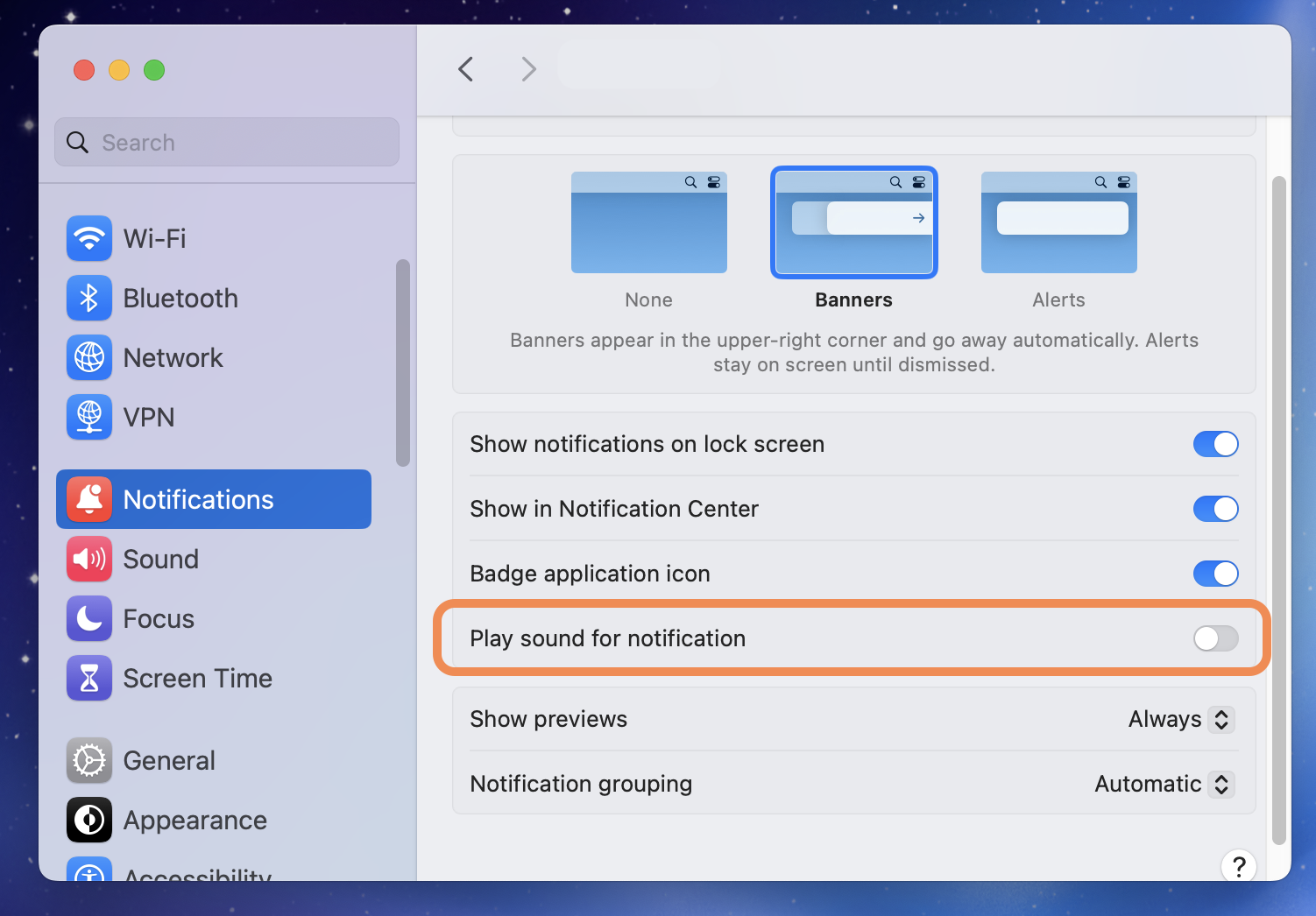
- Open Apple menu → System Settings.
- Click Notifications.
- Under Application Notifications, choose Claude.
- Turn Play sound for notifications on or off.
This is the only audio control macOS gives you per app, and it's a switch. The sound it plays when it's on is the shared system notification sound, which is why a different notification sound for each app isn't something you can set up in System Settings at all.
Limit: binary. Claude can be audible or silent, and audible means the same sound as Slack, Mail, and Messages.
Distinct done-sounds with Chirpy, one per tool
Chirpy is a native Mac menu bar app that plays a chosen sound when a matching notification banner appears. It reads the text already visible in Notification Center banners through the macOS Accessibility API, matches it against rules stored on your Mac, and plays the sound attached to the most specific match. It never touches an API belonging to Claude, OpenAI, or anyone else, because it only ever looks at the banner your own Mac already drew.
- Mute the generic notification sound for the AI app. Open System Settings → Notifications, choose the AI app, and turn off Play sound for notifications. Leave banners on. Without this you'll hear the system sound and your chosen sound together.
- Create a rule for the app and pick a short sound. In Chirpy, add a rule matching the app, then choose a sound. Something short and dry works best for completion, since you want to recognise it from another window without turning your head.
- Narrow by keyword where the banner carries useful text. If the banner text includes the project, repo, or window title, add a keyword rule above the app rule. The most specific matching rule plays, so a keyword rule for one project overrides the general app sound.
Chirpy costs $9.99 once, with every future update included, and the full app is free for 3 days without a card. It needs macOS 13 or later and asks for Accessibility access, never Screen Recording. What the licence covers.
ChatGPT desktop
The desktop app posts banners and offers no sound of its own, so it takes the same treatment: mute it in System Settings, then give it a rule. Picking a sound audibly different from Claude's is what pays off, because with two AI windows open you'll know which answer landed without looking. ChatGPT notification guide.
Cursor and other editors
Cursor's agent runs are the longest-running thing in my day and the easiest to lose track of. If the run posts a macOS banner when it finishes, Chirpy can match it like any other app, and if it doesn't, the terminal route below covers it.
GitHub Copilot
Copilot's pings arrive when a review or an agent task comes back, and they inherit the system sound. A rule with a keyword on the repo name is worth more here than a plain app rule, because a review on the service you're on call for is not the same event as one on a side project. GitHub Copilot notification guide.
Perplexity
Long research answers are the case where you do walk away, so this is the tool where the sound earns its place fastest, on the same pattern and one rule. Perplexity notification guide · Google Gemini · Claude.
Claude Code and agent runs in a terminal
Terminal work counts too, as long as the run finishes with a real Notification Center banner. Claude Code's own notification setting does that, and so does anything your setup already posts on completion. Once a banner appears, Chirpy treats it like any other: match its text, assign a chime. Put the project name in the notification and two repos can have two sounds. What can and can't react to a notification on macOS is covered in what Shortcuts can and can't do with notification sounds.
Native settings vs Chirpy
| Capability | Native (app + macOS) | Chirpy |
|---|---|---|
| A distinct AI-done sound | No, it's the system sound | Yes, any of 72+ sounds or your own file |
| A different sound per AI app | No | Yes, one rule each |
| Keyword rules on the task or project | No | Yes, when the banner text carries it |
| Works while your attention is in another window | Banner arrives; sound is generic | Yes, the sound alone tells you which tool |
A sound for a window you're already looking at is noise, so the setup worth building is quieter than what you have now. Silence for everything except the few events that mean it's your turn. Listen to the sound library with that in mind, because short and dry beats loud for completion.
AI apps change faster than macOS does, so this page gets re-checked more often than the rest of the site. If a setting has moved since the date on the byline, mail me at [email protected] and I'll fix it.
Frequently asked questions
It has a notification toggle, not a sound picker. When notifications are on, Claude for Desktop posts a banner to macOS Notification Center and macOS plays the system notification sound, the same one every other app gets. As of the August 2026 build there's no per-project or per-sound setting.
Yes, as long as the run ends with a macOS banner, whether from Claude Code's own notification setting or whatever your setup already posts on completion. Write a Chirpy rule matching that banner's text, pick a sound, and the terminal needs no sound setting of its own.
Not from inside the app. Its notifications go to macOS, which plays the system sound. Chirpy reacts to the banner instead, so you can give ChatGPT its own sound without waiting for the app to ship one.
Yes. One rule per app, so Claude, ChatGPT, Copilot, and Perplexity each get their own sound, so you know which window finished before you look. Volume is set per rule too, so a background agent can stay quieter than an on-call alert.